1. Introduction
We started in UE4 and its very exciting! but before getting into the fun part of blueprints, we had to dive deep into some technical aspects that although they sound pretty boring, they are good to know as they could become a life saver in the future.
Optimizing a project made in UE4 is something super important so that any project that requieres real time interaction runs smoothly and with no jumps in image of lag ( videogame, apk, virtual experience) There are different types of optimization, mostly the idea is to analyse what things cause the incremente of performance issues in the project and tackle them one by one. I'm going to use this blog post also as a small note pad to leave here all the thing learned and to take into consideration when deciding what to optimize the project.
2. Problem diagnosis
UE4 gives a variety of data values on screen that permit you understand what problems are you having on the project in order to evaluarte what things to take into consideration when you start optimizing your scene. This are shown on the game viewport.
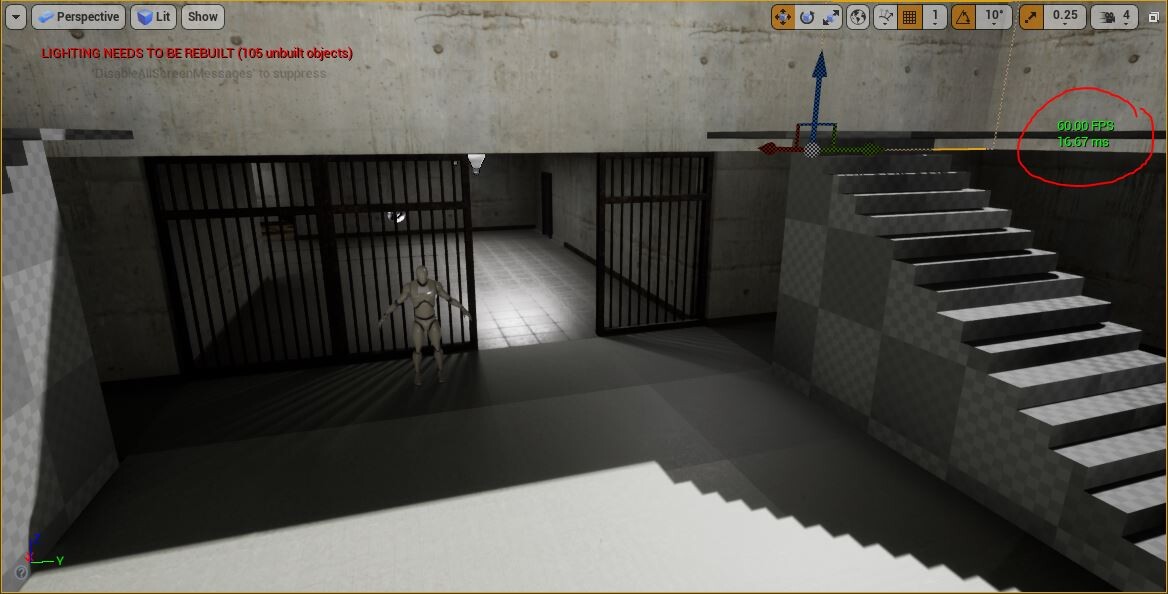
The most common one is the show fps on screen. This one comes in handy when the fps drops to a point where its still not perceivable to the human eye but still means a problem in terms of performance. Fps show a general overview of a problem but mostly they can be affected by blueprints.
"From now on I'm going to use the abbreviatures BP for blueprint and SM for static mesh."
Then there are more stats that we can pull out onto the screen to have a more detailed look into what parts of the project are having the most trouble.
To be able to interpret this details we must know that: Stats = issue
GAME = Blueprints
DRAW= CPU
GPU = GPU
When we know this we must analyse this using the next reference: Problem ---------> relation
GPU -------- >Poly count
CPU ----------> Draw calls
MVRam--------> Textures
Dynamic effects such as movable lights, particles or animations are also related to GPU performance.
Note: If frame and draw values are very similar in the stats, probably the problem to tackle would be in the CPU, reduce number of objects in scene or DRAW Calls.
3. Optimization techniques (brief summary)
1. LODs system
LODs defines as Level of detail. Depending on the distance we visualize the object inside the scene, this will reduce dynamicaly its detail soy when its very far away it would have much les geometry detail so that the system can process it better. Unreal gives many tools in order ti handle LODs inside the editor.
2. Merge Actors
windows / developer tools / merge actors
To reduce number of objects inside a level, UE4 gives tools in order to merge objects and reduce SM count. There are three types of merging techniques.
Option 1 : Merge actors separating ID by materials
Pro: Keeps details for materials Con: Wont optimize very much as it still has the draw calls from the materials
Option 2 : Merge actors and bakes all materials into one single texture and material
Pro: Reduce draw calls Con: Can lose a lot of detail by making much smaller textures.
Option 3 : Merge actors and makes a copy as an instance. Groups my materials ID
Pro: Keeps materials detail Con: Instances are a bit more difficult to handle in terms of positioning in the world
3. Texture Optimization
Textures must always go into the editor with standard values ( 512, 1024,2048....etc) if not they would give visual issues. The only exceptions are sprites and hdri.
Textures and be optimized with the options:
Maximum texture size - Define how big the texture must be independently of its original size
LOD Bias - similar to a SM system. It creates different levels of detail or resolution for textures depending on its screen size.
4. Lighting
Lighting doesn't have as much optimization techniques as it has more functionality definitions. Basically dynamic lights will always be more performance expensive than everything that's is baked. That's why we have to take into consideration how our illumination must be handles in a scene using the different types of light techniques.